
Send a gas map or project picture
Add a screenshot of your gas map or project drawing, tap the start and end of each phase, and write a line about the work. Works for an RO or an SRO.
Or use the request form
Three ways to send a request
- Send a gas map picture of the operation area, with the start and end of each phase marked (above).
- Attach a request form on the request form: your own form, a photo of a paper form or a screenshot.
- Fill in the GNC request form online.
Completed ROs are returned by email in under 6 hours (12 hours during busy periods) and SROs within 3 hours. Emergency requests are given priority. Every RO is checked against SGN ML2 and SCO/5, and every SRO against SGN ML2 and SCO/5000, before it is returned.
A request sent from the app goes into My requests by itself. On the request form, tap Follow it in the GNC app when it is sent.
Not set up with GNC yet?
You can still send a request. To be set up for future requests, apply once for your company.
Urgent operation requests from companies not set up with GNC carry a higher charge. Priority is always given to companies already set up with GNC.
RO or SRO?
Prices are plus VAT.
Your gas map or project picture
A screenshot of the SGN gas map works best. Zoom in so the mains and the street names can be read.
You can also take a photo of a computer screen or a paper project plan. Hold the phone square on, in good light, with the whole operation area in the picture.
On a computer you can also paste a screenshot here with Ctrl + V.
No GNC pointer? Choose a screenshot or picture, or paste one here with Ctrl + V. A picture does not carry the map position, so add the Eastings and Northings of A in the start point box if you can.
Or mark the points on the SGN gas map itself.
Best way on a computer: mark the job on the SGN gas map with the GNC pointer.
- Open the SGN gas map and click the start and end points in the GNC points box.
- Press Send to GNC in the GNC points box on the map.
GNC then gets the exact map position and the mains, so your operation is written first time. You do not need to come back to this app.
Open the SGN gas mapThe GNC pointer only works alongside the SGN gas map. It does not read, change or send anything from any other website.Add the GNC pointer
Assistant prices: sent with the GNC assistant, an RO is £50 for the first phase and £25 for each extra phase, and an SRO is £30, all plus VAT. Your company must be registered with GNC to use the assistant.
Add-on blocked or “not allowed”? Your company may need to approve it first. Ask your IT department to allow the GNC Operations Request Assistant on your computer, so you can use it on the SGN gas map. You can still take a screenshot of the gas map and send that instead.
How to use the GNC pointer on the gas map
- On a computer with Edge or Chrome, add the free GNC Operations Request Assistant.
- Open the SGN gas map and zoom in to the job.
- Click the assistant icon, then click the start and end of each phase on the map.
The GNC pointer is not in the browser stores yet. Until it is, open the gas map, take a screenshot, come back here and choose it above, then mark the points here.
No pointer? Open the gas map anyway: take a screenshot, come back here and choose it above.
Mark the start and end of each phase
Each point gets the next letter: phase 1 starts at A and ends at B, another end is C, and phase 2 carries on from there. Orange letters are side mains off the main being worked on. The letters are used on the RO. Only add another phase where the job needs one. If a phase shows better on another picture, tap + Different picture.
Job details
Tap, then say each one with its key word: CP (name), AE (name), start point (place), project number, mobile. Tap again when finished. The words go into the boxes and you check them on the last screen.
Tap a date box to pick the date from the calendar. Names you have used before come up as you type.
Your details
Your details are kept on this device for next time.
This is what GNC will get
Prices are based on the information given with the request. If the information given is wrong or incomplete and a phase has to be added or rewritten, it is charged as a new phase (£30 plus VAT). An SRO that has to be rewritten for the same reason is charged at £20 plus VAT. Changes needed because of a GNC error are made free of charge.
Request sent
Your reference is
It has been added to My requests on this device, so you can follow it there.
Your email address
Requests are only shown when this matches the address on the request.
Add an earlier request
It is on the Request received screen after you send, and on the email your completed RO or SRO comes in.
My requests
How to use the GNC app
Three things the app does. Tap one to go straight to it.
Send a gas map or project picture
Choose RO or SRO
On the Request screen tap Mark up your gas map, then choose the kind of operation you need written.
Add your picture
Take a screenshot of the SGN gas map for the operation area and tap Take a photo or choose a picture. On a computer you can paste it with Ctrl + V.
Zoom in before you take the screenshot, so the street names and the mains can be read.
You can also take a photo of a computer screen or a paper project plan. Hold the phone square on, in good light, with the whole operation area in the picture. A screenshot is clearer when the map is on the same phone.
Tap the start and ends
Tap Start, then tap the map where the phase starts. Tap End, then tap where it ends. Each point gets the next letter.
- AGreen is where the phase starts.
- BRed is where it ends.
Write one line about the work, for example Live insert 125mm PE into 6" CI, live head retrieval at the tee, about 60m.
Another phase? Tap + Add phase and mark it on the same picture. Phase 1 turns grey so you can see where it ends. If phase 2 joins it, start on the same spot (B and C on the tee here). The letters carry on.
For example, phase 2: Live insert 75mm PE into 4" CI from the tee south, tie in the tee, about 50m. The same letters are used on your RO or SRO.
Job details
The CP undertaking the works, the AE if you know them, and the preferred start and end dates. Tap a date box to pick the date from the calendar.
Your details
Your company, name, mobile and the email address the completed operation is sent to. Then the start point: an address with its postcode, or one set of Eastings & Northings.
Tick Urgent only if you need it as soon as possible. Add anyone to copy in when it is returned, for example the AE. Tick Tell me on this device to get a message when it is sent back (on an iPhone, add the app to your Home Screen first). Your details are kept on the phone for next time.
Check and send
Tap Check before sending. You see exactly what GNC will get, then tap Send. This is an example:
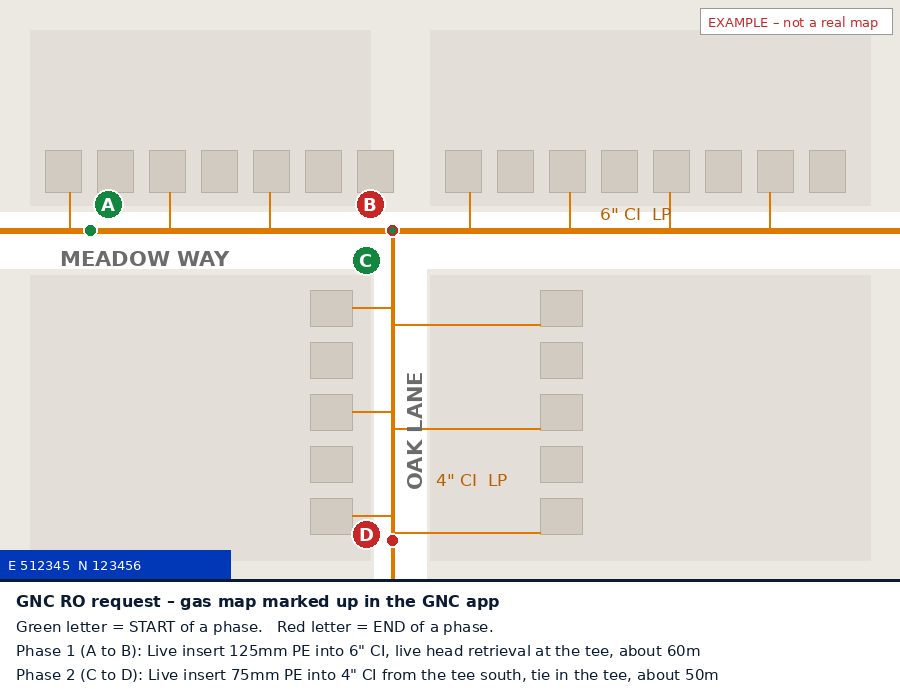
Example only, not a real map. Tap the picture to see it full size.
The reference is added to My requests by itself.
Use the request form
Tap Request an RO or Request an SRO on the Request screen. The form opens and you choose how to send it:
- Attach a request form: your own form, a photo of a paper form or a screenshot (add the file or paste it).
- Fill in online: fill in a phase for each part of the job.
When it is sent, tap Follow it in the GNC app and it goes into My requests.
Follow your request
Open My requests. Type the email address you put on the request, then add the reference. The app shows where it is up to.
- Received: GNC has your request.
- Being written and checked: the operation is being written and checked.
- Completed: it has been emailed to you. You can also download the PDF here.
On an iPhone, save the PDF to Files first (Share, then Save to Files) and open it from Files to type in the boxes.
Completed ROs are returned by email in under 6 hours (12 hours during busy periods) and SROs within 3 hours. Emergency requests are given priority.
Put the app on your phone or laptop
The steps for iPhone, Android and laptop (Edge or Chrome) are on the Help screen.
Put the GNC app on your phone or laptop
The GNC app is installed on this device.
iPhone (Safari)
- Open gncgas.co.uk/app in Safari.
- Tap the Share button (the square with the arrow).
- Tap Add to Home Screen, then Add.
Android (Chrome)
- Open gncgas.co.uk/app in Chrome.
- Tap the three dots at the top right.
- Tap Add to Home screen or Install app.
Laptop (Edge or Chrome)
- Press the install button above, if it is showing.
- Or click the install icon at the right of the address bar.
- The app opens in its own window and sits on your taskbar.
No app store is needed. The GNC icon opens the app like any other.
Get in touch
Any questions, or more details on GNC services.
info@gncgas.co.ukEmail address copied.
Your details on this device
Your email address, the references you add, and the CP, AE and copy in names and email addresses you have used before are kept on this device only. They are sent to GNC only with your requests and to look them up, and nothing else is shared. GNC is independent and is not part of SGN.
gncgas.co.uk · GNC Gas Network Consultant